PS4 controller overlay for OBS
A DualShock 4 overlay that plays along with your hands, in stock black or a camo from the vault. One link in OBS, every press on screen.
Design my PS4 overlay
Press any button on your DualShock 4
Try a skin
Stock is free. Camo skins are in the vault, $9.99 once.
What the PS4 controller overlay shows
The PS4 controller overlay is a drawing of the DualShock 4 that copies what you do with the real one. Press Triangle and Triangle lights; roll the D-pad and each direction lights in turn. L1 and R1 sit on the shoulders, with L2 and R2 behind them, and both light up as you pull. The two sticks sit side by side at the bottom, as they do on the DualShock 4, and move on screen when you move them.

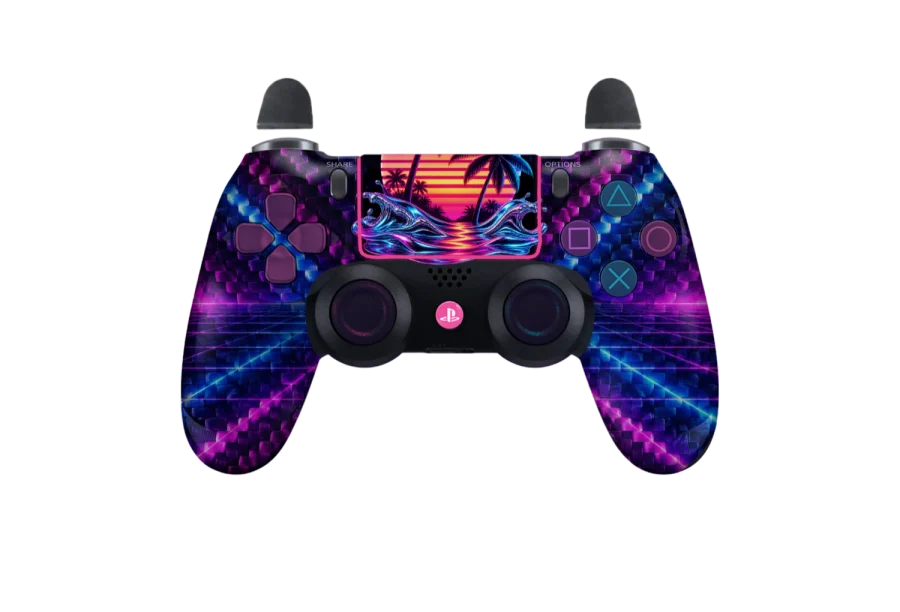
The middle of the pad gets the same treatment. The Share and Options buttons either side of the touchpad, the PS button below it and a click on the touchpad itself all show up on stream. The DualShock 4 overlay has one light group, a strip that runs around the edge of the touchpad, and it takes whichever light colour you set.
The page behind the pad is transparent. Only the controller is drawn, so it sits over your game footage with no background box around it.
Put the DualShock 4 overlay in OBS
The DualShock 4 overlay goes into OBS as a web page. Once your design is saved, it is four steps:
- Sign in, choose the PS4 pad and a skin, then copy your overlay link.
- In OBS, add a Browser Source to your scene.
- Paste the link and set the source to 800 wide by 600 high.
- Position it over your game and press any button on the DualShock 4.
The browser source reads the controller directly, which means the DualShock 4 needs to be plugged into, or paired with, the computer that runs OBS. Shrink or move the source however you like inside OBS. You set the link once: edits you make to the design on this site reach the source within about 12 seconds.
If you stream from several scenes, add the overlay to the first one and use Add Existing in OBS to place that same source in the others. Two separate browser sources with the same link count as two copies, and only one of them can hold the link at a time, so the second would take over from the first.
Using it outside OBS Studio
Because the overlay is a web page, any app that can show a browser source can show your DualShock 4. That includes Streamlabs and TikTok LIVE Studio as well as OBS Studio. Add the browser source, paste the same link, and keep it at 800 × 600 before you scale it in the scene.
Your link can drive one stream at a time. Opening it in a second app makes the first one stop, and a refresh of the source in whichever app you are live in claims it back. You never need a second design to move between apps.
DualShock 4 wired or over Bluetooth
You can use a micro-USB cable or pair the DualShock 4 over Bluetooth. Either way the site reads the pad through the browser Gamepad API. Browsers keep a controller hidden until it sends a button press, so give it a press after the page loads and the overlay wakes up.
Sony pads paired over Bluetooth often report their buttons in a non-standard order in browsers. On the overlay that looks like the wrong face button lighting up, or a shoulder press landing on a different part of the pad. Common cases are recognised and corrected without you doing anything.
For anything left over there is a calibrator. It walks you through ten presses: Cross, Circle, Square and Triangle, then L1 and R1, then up, down, left and right on the D-pad. Once it has those, every later press goes to the right part of the DualShock 4. The calibrator is part of the free account.
PS4 controller overlay skins
The free stock look is the plain DualShock 4. Every vault skin also comes on the PS4 pad: Vice Neon, the Dark Matter, Damascus, Abyss, Orion and Borealis camos, the Crimson carbon and Phantom Wuxia. Pick one here and the same skin is waiting if you ever switch to the DualSense or an Xbox pad.
The list beside the pad at the top of this page switches the skin live. Leave it on the demo or press a button on your own DualShock 4 to take over and see the skin react to you.
Colours, lights and a name for your DualShock 4
Pick one colour for the face buttons and the D-pad and they change without touching the skin underneath. Pick a second colour for the touchpad edge lights and choose how they behave: steady, pulsing or off.
A pressed button swaps the shades of the colour you chose, so a press reads clearly against the skin instead of blending into it. That matters most on busy camos, where a small face button could otherwise get lost.
The DualShock 4 touchpad also takes a name. Up to 16 characters fit, which is room for most channel names and handles, and it is shown on stream for as long as the overlay is up. Every choice is made from controls on the page. You never write CSS or paste code.
What is free and what is in the vault
With a free account you get the stock DualShock 4, a permanent OBS link and the Bluetooth fix. Nothing else is needed for a working PS4 controller overlay.
The vault costs $9.99 once and does not renew. It adds every camo skin on the PS4, PS5 and Xbox pads, plus the button, light and name colours. Saving, copying your link and using a vault skin require you to sign in. See the pricing page for the details.
Other controllers
If you have moved to the newer Sony pad, use the PS5 controller overlay, which draws the DualSense with its grip lights and Create button. For a Microsoft pad there is the Xbox controller overlay. Your vault skins come with you to both, so switching pads later does not mean starting the design again.