PS5 controller overlay for OBS
A live DualSense in the corner of your stream, in stock black or a camo from the vault. One link in OBS, every press shown.
Design my PS5 overlay
Press any button on your DualSense
Try a skin
Stock is free. Camo skins are in the vault, $9.99 once.
What the PS5 controller overlay shows
The PS5 controller overlay draws a DualSense on your stream and lights up each part the moment you use it. Cross, Circle, Square and Triangle flash as you press them, the four D-pad directions show which way you tapped, and L1, R1, L2 and R2 light up for every bumper and trigger press. Both sticks travel on screen as yours do, so viewers can see a slow strafe, a flick or a held sprint without a camera pointed at your hands.

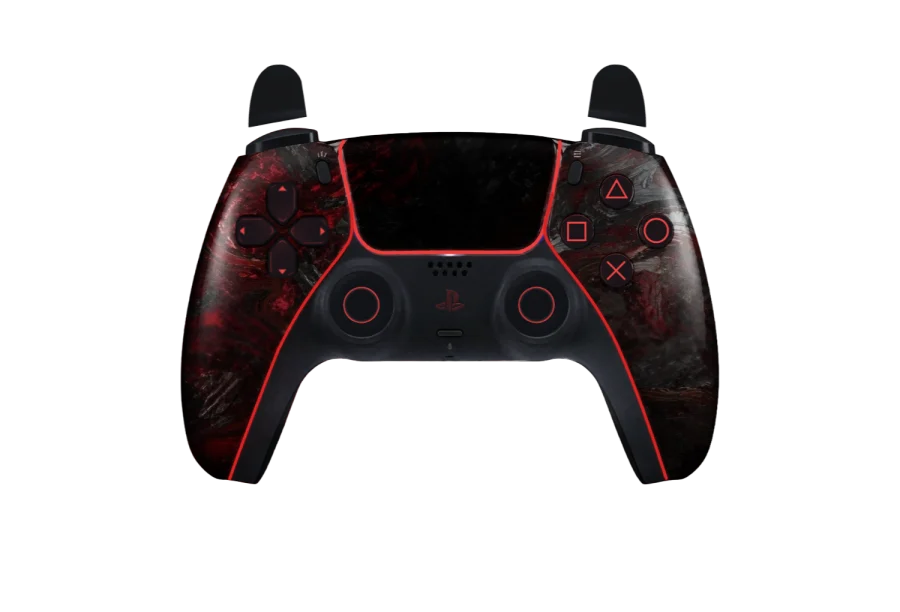
The centre of the pad is drawn too. A touchpad click, the Create button, the Options button and the PS button all show when you press them, which matters in games where opening the map, the menu or a scoreboard is part of the play. The DualSense has two sets of lights on the overlay, a strip around the edge of the touchpad and accents along the grips, and both follow the light colour you choose.
Everything around the controller is transparent. Your game stays visible right up to the edge of the pad, and the overlay reads as part of the scene rather than a box pasted on top of it.
Add the DualSense overlay to OBS
Getting the PS5 controller overlay into OBS takes one source. Design the pad on this site first, then bring it in as a web page:
- Sign in, pick a skin for the DualSense and copy your overlay link.
- In OBS, add a Browser Source to the scene you stream from.
- Paste the link into the URL field and set the width to 800 and the height to 600.
- Drag the source to a corner your HUD leaves free and press a button on your DualSense.
The page reads your DualSense from inside the browser source, so the controller has to be connected to the computer that runs OBS, over USB or Bluetooth. Scale the source down inside OBS to fit your layout. The link is permanent: change the skin, the colours or your name on the site and OBS picks it up within about 12 seconds, with no new URL to paste.
Streamlabs, TikTok LIVE Studio and other apps
The overlay is an ordinary web page, so the same link works in any streaming app with a browser source, not only OBS Studio. In Streamlabs, add a Browser Source and paste the link. In TikTok LIVE Studio, add a browser or link source and do the same. Use 800 × 600 in each so the DualSense is drawn at the size it was laid out for, then resize it in the scene.
One link runs one stream at a time. If you open it in a second app, the first copy stops showing your inputs. Refreshing the browser source in the app you want to use takes it back, so switching from OBS to Streamlabs for a night is a refresh, not a new design.
DualSense over USB and Bluetooth
Plug the DualSense into your computer with a USB-C cable or pair it over Bluetooth. The site reads it through the browser Gamepad API, and browsers only start reporting a controller after its first button press, so press any button once the page is open.
Over USB, a DualSense reports its buttons in the order browsers expect. Over Bluetooth it often does not: the browser treats it as a generic device, and a press of Square can light up Cross on the overlay. The site recognises the common versions of this and fixes them automatically.
If your pad still lights the wrong buttons, open the calibrator. It asks for ten presses one at a time: Cross, Circle, Square, Triangle, L1, R1 and the four D-pad directions. After that the overlay knows which signal is which button, and the fix comes with your free account.
PS5 controller overlay skins
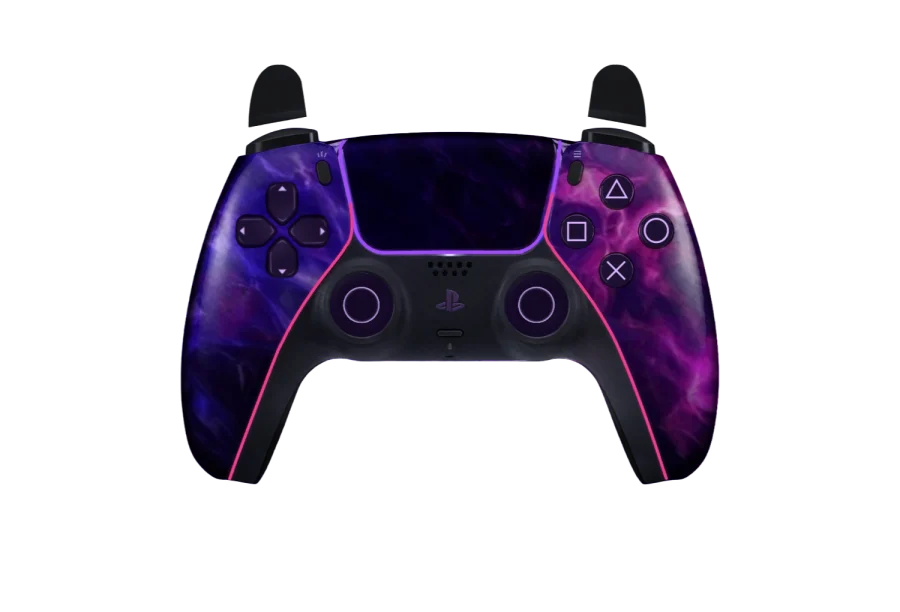
The stock look is a plain black DualSense, and it is free. The vault adds camo finishes such as Dark Matter, Borealis, Orion, Damascus and Abyss, a crimson carbon look, and painted designs like Phantom Wuxia and Vice Neon. Each one is fitted to the curves of the DualSense shell, so the pattern follows the grips and the touchpad instead of sitting on top as a flat sticker.
Try them on the pad at the top of this page: pick a name from the list and the DualSense changes while the demo keeps playing. Press a button on your own controller and it takes over from the demo, so you can see a skin with your own inputs before you sign in.
Buttons, lights and your name on the touchpad
On top of the skin, three things are yours to set. The face buttons and the D-pad take one colour, so Cross, Circle, Square, Triangle and the arrows can match your channel while the camo underneath stays as it is. The lights take another colour and a behaviour: steady, a slow pulse, or off. On the DualSense that covers both the touchpad edge and the grip accents.
The touchpad is the widest flat surface on the pad, which makes it the natural place for a name. Type your channel name or handle, up to 16 characters, and it is printed across the touchpad on stream. All of this is picked from controls on the page. There is no CSS to write and nothing to paste.
Free account and the vault
A free account gives you the stock DualSense, your permanent OBS link and the Bluetooth fix. That is enough to put a working PS5 controller overlay on stream tonight.
The vault is $9.99, paid once. It is not a subscription and there is nothing to renew. It opens every camo skin on all three controllers, along with the button, light and name colours. Saving a design, copying your link and using a vault skin all need you to be signed in. The full breakdown is on the pricing page.
PS4 and Xbox controllers
Pick the overlay that matches the pad in your hands, not the console you own. If you stream with an older Sony pad, the PS4 controller overlay draws a DualShock 4 with its own touchpad and Share button. If you use a Microsoft pad, the Xbox controller overlay draws the Xbox controller with A, B, X and Y. Every skin in the vault fits all three, so a camo you like on the DualSense is there on the other two as well.