Controller overlay for TikTok LIVE Studio
TikTok LIVE Studio has no source called Browser. Its Link source adds a web page to your scene, and a controller overlay is a web page. Here is how to add one, using only what TikTok’s help centre documents.
Start designing
Portrait
Landscape
Press any button on your controller
The Link source is LIVE Studio’s web page source
In OBS and Streamlabs a controller overlay goes into a source called Browser. TikTok LIVE Studio names things differently. Its help centre lists these source types: Game capture, Display capture, Window capture, Camera, Capture card, Cast, Text, Video, Image and Link.
Link is the one that takes a web address. TikTok’s description, from its What’s a source? article: “The link source helps add a webpage preview to your LIVE, allowing you to share online content with your audience.”
A ControllerOverlay link is a web page. It draws your controller on a transparent background and lights up each button as you press it. So the plan is short: copy the link, add a Link source, put the pad where phone viewers can see it.
Before you start
Three things have to be in place.
- LIVE Studio on your computer. TikTok says LIVE Studio supports both macOS and Windows. You download it from TikTok’s site, install it and log in with your TikTok account.
- LIVE access. TikTok’s help centre says: “To go LIVE on TikTok from LIVE Studio, you need LIVE access.” You can see your status in the top right corner of LIVE Studio, and clicking Your LIVE access starts an application. The requirements vary by country or region. If you already stream on another platform, TikTok has an application form for that, and it says a review might take days.
- Your controller on the same computer. The overlay page reads the controller itself, so the pad has to be connected to the computer that runs LIVE Studio, over USB or Bluetooth.
Get your overlay link
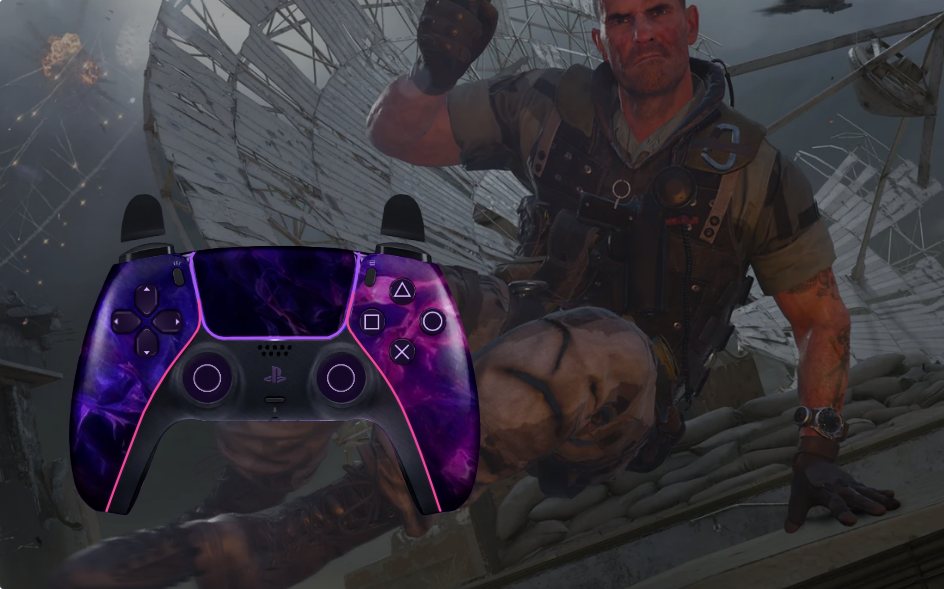
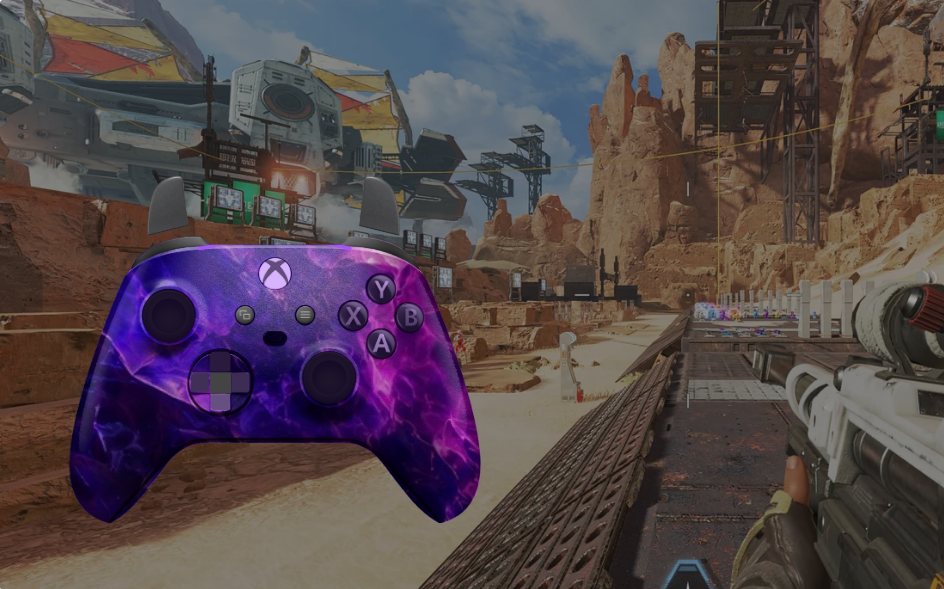
- Open the studio and pick the pad you hold: the PS5 DualSense, the PS4 DualShock 4 or the Xbox controller.
- Pick a skin. Each pad has a free stock look, and the skin list shows the rest.
- Sign in with a free account, save, and copy your overlay link. It has the form controlleroverlay.com/v/ followed by a token.
Anyone who has the link can load your overlay, so keep it off screen while you are LIVE.
Pick a scene layout
A scene, in TikTok’s words, “is what your viewers see in your LIVE”. LIVE Studio has three scene layouts, and the choice decides how much room the pad gets.
- Portrait. TikTok: “Ideal for mobile viewers watching vertically.”
- Landscape. “Perfect for widescreen content such as PC gaming.”
- Dual layout. It lets viewers switch between portrait and landscape.
To make a new scene, select a layout type in the Scenes section, click Add scene, choose a template and click Add. You can set up several scenes and switch between them during a LIVE, so a portrait scene with the pad under the game and a landscape scene with the pad in a corner can sit side by side.
Add the overlay as a Link source
- Select the scene you want the controller in.
- Click the Add source button under that scene. A list of source types opens.
- Select Link.
- Give the source your overlay link as its web address. TikTok’s help centre describes what the Link source is for but does not list the fields in its window, so go by the labels in your version. If it offers a width and a height, enter 800 and 600, the size the overlay is laid out for.
- Confirm. The source is added to your scene.
- Press any button on your controller. You should see the pad, and the button you pressed should light up.
TikTok says you can move, resize and reorder sources to arrange a scene. If you add your game after the overlay, check the order and move the Link source so the game does not cover it.
Your game comes in through a capture source. TikTok’s capture source article has the steps: under the selected scene, click Add source and then Game capture, and choose between capturing any full-screen game and capturing one selected game. It notes that some games do not work with game capture, and suggests Display capture or Window capture for those.
Place it for phone viewers
TikTok’s own interface sits over part of your video, and it is not the same in every feed. Do not guess where. LIVE Studio shows you.
- Click Edit on your scene to enter the editing view. TikTok describes this view as the place for detailed edits and for seeing the scene from your viewers’ side.
- Switch between the LIVE and For You tabs. TikTok says they show how your LIVE will look in different feeds, so you can adjust to the actual interface.
- Drag the pad to a spot that stays clear in both tabs, and resize it until the buttons are easy to read at phone size.
As a starting point, try the pad under the game in a portrait scene and in a lower corner in a landscape scene, then let the two tabs decide.
Check it before you go LIVE
This is the part to take seriously. TikTok documents that a Link source shows a web page. It does not say whether the source keeps a page’s transparent background, or whether a page inside it can read a controller. We have not run the overlay in LIVE Studio yet, so we cannot tell you from our own testing either.
Check these in the preview before your first LIVE with it:
- Background. Over your game you should see only the controller. If you see a solid box around it, the Link source is not keeping the transparency.
- Input. Press buttons and move both sticks. The pad should follow. Browsers hide a controller from a page until one button has been pressed, so the first press may only wake it up.
- Input while playing. Click into your game and press again while you watch the LIVE Studio preview. The pad should keep following.
- A message instead of a pad. “This OBS overlay link does not exist” means the link was cut short when you copied it. “Stream link active on another device” means the link is open somewhere else.
If one of these fails in your version of LIVE Studio, write to support@controlleroverlay.com and tell us what you saw. That report is useful to us and to the next streamer.
If you play on a console
LIVE Studio has a Capture card source, which TikTok describes as sharing “the audio and video from gaming consoles via USB and HDMI”. That brings the console’s picture into your scene.
It does not bring the controller’s buttons with it. The overlay reads a controller that is connected to the computer. A pad that talks only to your console cannot be read by the page. Keep that in mind before you set up the overlay for a console stream.
One link, other apps
The link you give LIVE Studio is the same one you would use anywhere else. It is permanent: save a different skin or colour in the studio and the page checks in about every 12 seconds and updates itself.
One link runs in one place at a time. If you stream to another platform from OBS on some days, the app that loaded the link last shows your inputs, and the earlier copy stops until it is refreshed. The OBS steps are in how to add a controller overlay to OBS, and the Streamlabs Desktop steps in how to add a controller overlay to Streamlabs.
A free account covers the stock looks of the PS5, PS4 and Xbox pads, the link and the Bluetooth button fix. The vault is $9.99, paid once, and adds every other skin plus the button, light and name options. The pricing page has the details.