Gamepad viewer
Connect a PS5, PS4 or Xbox controller and press a button: the pad below shows your inputs live. Under it is an independent guide to Gamepad Viewer, the tool at gamepadviewer.com, which is a different product from this one.
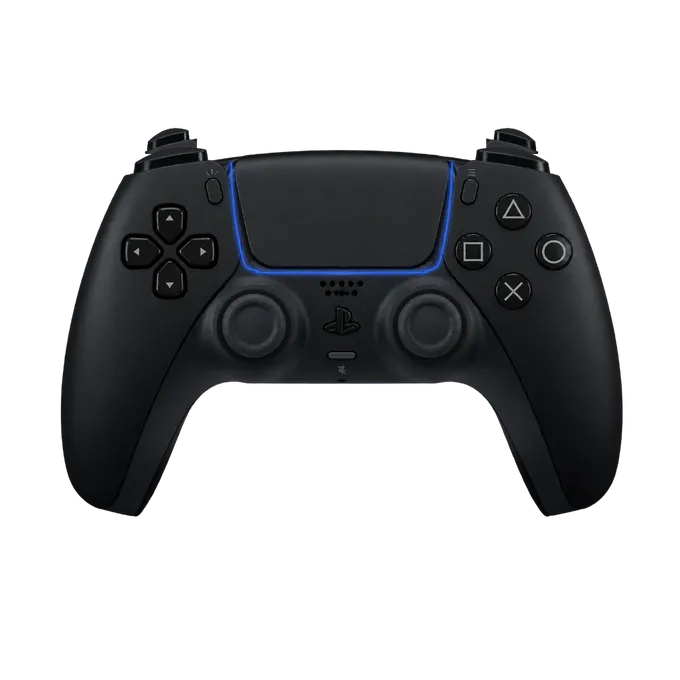
Press any button on your controller
A gamepad viewer in your browser
The pad at the top of this page is a gamepad viewer: it reads the controller connected to your computer and shows every button, trigger and stick as you use it. It draws three pads, the PS5 DualSense, the PS4 DualShock 4 and the Xbox controller, and nothing is installed.
To put it on a stream, open the studio, sign in with a free account and copy your link. In OBS it goes into a Browser source at 800 × 600, with a transparent background, so only the controller sits over your game. The stock pads are free; the other skins cost $14.99 once. If you want raw numbers for each button and stick instead of a picture, use the gamepad tester.
This viewer is made by ControllerOverlay. It is not Gamepad Viewer, the long-running free tool at gamepadviewer.com. The rest of this page is a guide to that one.
What Gamepad Viewer is
Gamepad Viewer is a web page that draws a controller and lights up each button as you press it. Its FAQ describes it as “a web-based tool used for representing gamepad input visually”. You connect a controller, open the page, and the picture follows your hands.
Streamers use it as an overlay. The page has a Compact Mode with no background, and OBS can load a web page as a layer over the game, so viewers see what you press. The changelog on the site goes back to 2014. It lists no price and asks for donations, and the main site needs no account.
How to add Gamepad Viewer to OBS
- Connect your controller to the computer that runs OBS and press a button on gamepadviewer.com to check it is seen.
- Open the URL Generator in the site’s menu. Choose a player number and a skin, and copy the link it gives you.
- In OBS, click the + button at the bottom of the Sources dock and choose Browser.
- Paste the link into the URL field.
- Set the size. Gamepad Viewer’s instructions say the width and height “will require playing around with”, so work up or down from the defaults until the whole controller is inside the source.
- Press a button on the controller. The pad in OBS should light up.
The OBS half of this is the same for any overlay that comes as a link. OBS documents the source and its settings on its Browser Source page, and our OBS walkthrough goes through placing and sizing it. The same link also goes into Streamlabs Desktop as a Browser Source.
Gamepad Viewer URL parameters
A Gamepad Viewer link carries every setting in itself, as parameters after the question mark. The URL Generator writes them for you, but you can also edit the link by hand. These are the ones in its Docs section:
| Parameter | Name in the docs | What it does |
|---|---|---|
| p= | Player Number | Which connected controller to show: 1, 2, 3 or 4. |
| s= | Skin ID | Which built-in skin to draw. The numbers are listed under Skins below. |
| sc= | Scale Multiplier | Makes the controller larger or smaller. |
| dz= | Deadzone Radius | How far a stick has to move before it shows. |
| smeter= | Strength Meter | Shows the triggers as strength meters “instead of opacity levels”. |
| delay= | Input Delay | Holds the inputs back by a number of milliseconds, for when you capture gameplay from a console and the picture arrives late. |
| rot= | Rotational Stop | Turns stick movement into rotation, “mainly for having the thumbsticks represent wheels”. |
| editcss= | Edit CSS | The address of a CSS file with changes to the current skin. |
| css= | Custom CSS | The address of a CSS file that replaces the skin altogether. |
So gamepadviewer.com/?p=1&s=5 shows player 1 on the PlayStation 4 skin. Because the settings live in the link, changing one means pasting a new link into OBS.
Gamepad Viewer skins
A skin is the controller that gets drawn. Twelve are built in, and each has a Skin ID that goes after s= in the link. The newest PlayStation pad among them is the PlayStation 4’s; there is no PS5 skin.
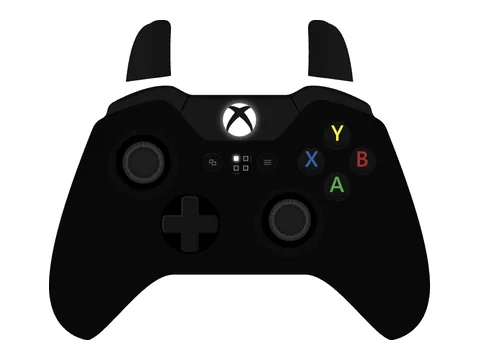
Xbox Ones=1
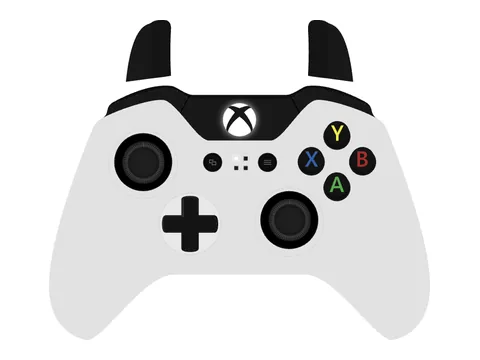
Xbox One (White)s=0
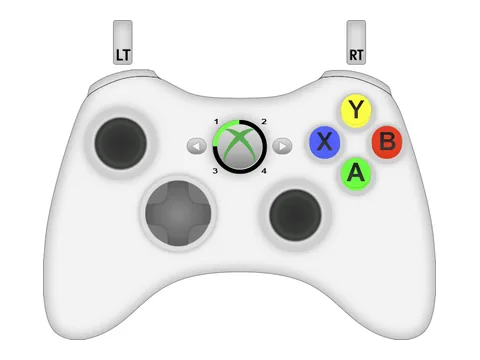
Xbox 360s=4
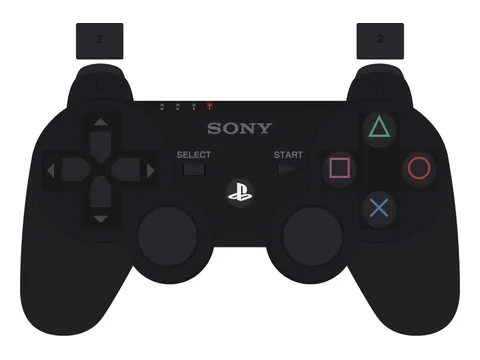
PlayStation 3s=2
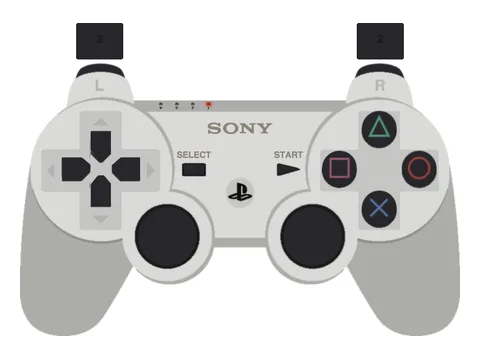
PlayStation 3 (White)s=10
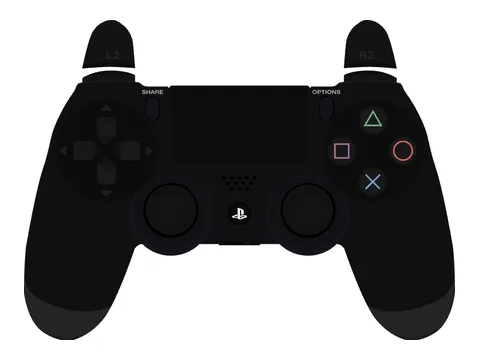
PlayStation 4s=5
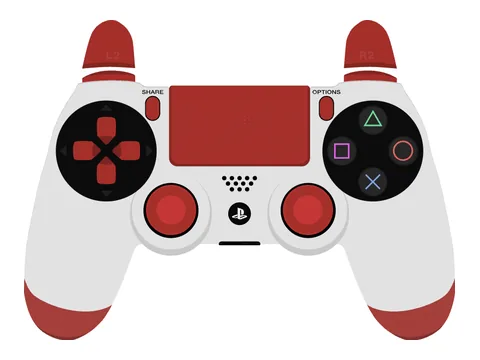
PlayStation 4 (White)s=8
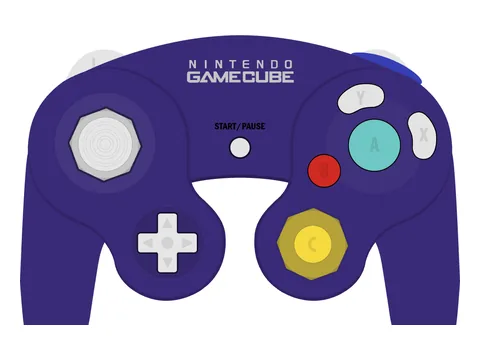
GameCubes=9
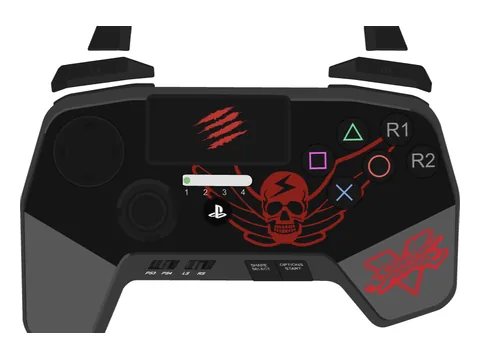
FightPad Pros=6
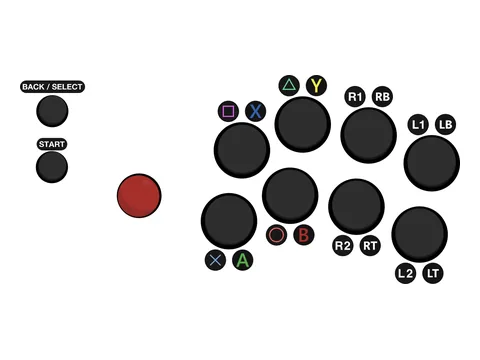
Fight Sticks=7
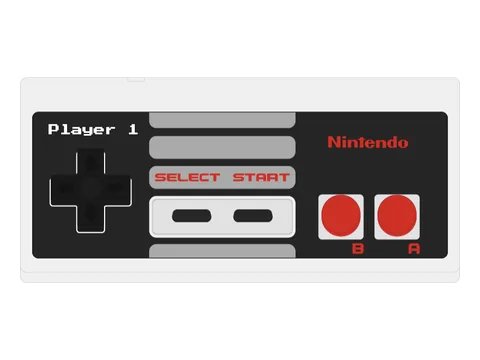
NESs=3
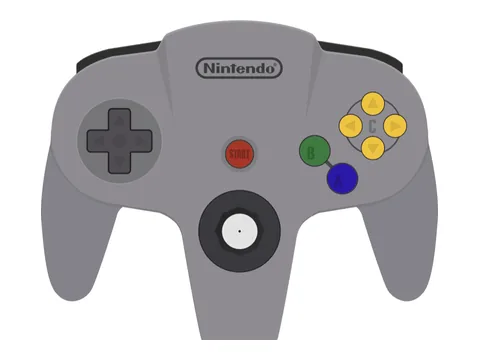
Nintendo 64s=11
Anything else is a custom skin: a CSS file on the web that you load with css=, or changes to a built-in skin loaded with editcss=. Its FAQ says making one from scratch needs “some basic knowledge of CSS”. Where to find skins other people have shared, including two PS5 ones, is covered in Gamepad Viewer skins.
More than one controller
The player number is what lets Gamepad Viewer show a couch full of people. Add one Browser source per player, give each its own link with p=1, p=2 and so on, and place them side by side. Up to four are supported.
Gamepad Viewer not working in OBS
Three causes cover most cases.
- No button pressed yet. A browser does not show a controller to a page until a button has been pressed. Press one after OBS has loaded the source.
- The controller is on another machine. The page reads the controller connected to the computer that runs OBS. A pad that talks only to a console cannot be read.
- OBS 33. Since 23 October 2026 Gamepad Viewer’s status page has carried a warning: “From OBS 33.0.0 on, a browser source stops receiving controller input as soon as OBS is not the focused application”. The pad freezes on its last input the moment you click into your game.
The OBS project tracks the last one as issue 14083 and has marked it confirmed. It is in the browser that OBS ships, so it affects every overlay that runs in a Browser source, ControllerOverlay included. As of 15 November 2026 a fix is proposed in pull request 14181 and not yet released. Until then: on Windows, run OBS as administrator; on macOS, go back to OBS 32.2.2.
If the wrong buttons light up, that is the controller reporting its buttons in an unusual order, which Sony pads on Bluetooth often do. Gamepad Viewer has a Remap Buttons page for it. To see what your controller actually sends, use the gamepad tester.
The GPV 2 beta
A second version is in beta at beta.gamepadviewer.com. Its URL Generator offers the same twelve skins under “GPV Classic Skin” and a “Custom Skin” tab with a field for a CSS address. It adds sign-in, with Google, Discord or Twitch, to “save your setups”, and a guided remap of “26 prompts, about 2 minutes” for buttons that show up in the wrong place. We have not looked at the signed-in part.
If you want a PS5 pad or colours without CSS
Gamepad Viewer is the right tool for an Xbox 360, PlayStation 3, GameCube, NES or Nintendo 64 pad, for a fight stick, for several players at once, and for anyone who wants to pay nothing and enjoys CSS.
ControllerOverlay, the tool this site makes, covers the other case. It draws the PS5 DualSense, the PS4 DualShock 4 and the Xbox controller, and its skins are picked from a list. The link stays the same when you change the design. The stock pads are free with an account and the rest cost $14.99 once. The Gamepad Viewer alternative page compares the two line by line, with sources.