Gamepad tester
Connect a controller and press any button. The pad lights up as you press, next to what your browser receives from it. Free, nothing to install.
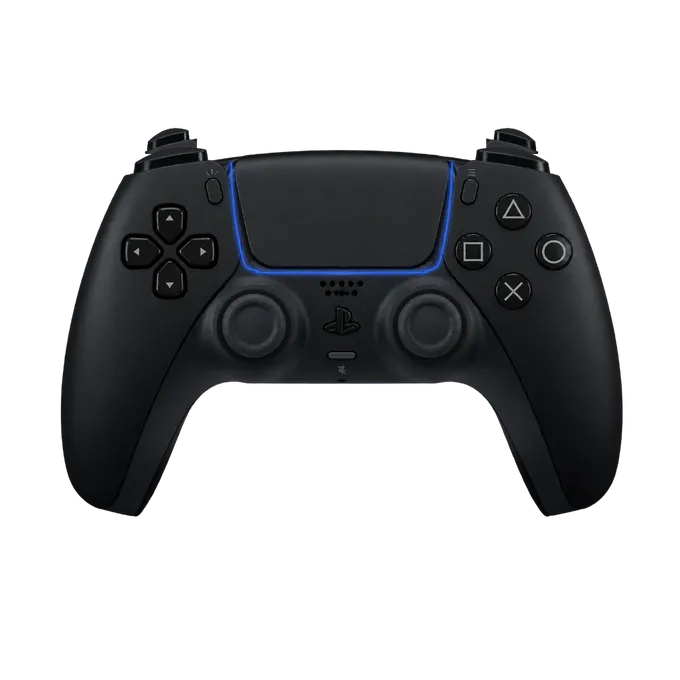
Press any button on your controller
Connect it by USB or Bluetooth first. A browser shows a controller to a page only after a button has been pressed.
How to test a controller
- Connect the controller to this computer, by USB cable or Bluetooth.
- Press any button. The panel changes from “Press any button” to the name of your controller.
- Press every button once. Each one fills in orange while you hold it and keeps a tick after you let go.
- Pull both triggers slowly to the end. Their numbers should climb from 0.00 to 1.00 without jumping.
- Let go of the sticks and read “Off centre”. Then rotate each stick around its edge until the circularity figure appears.
- Press Vibrate and feel for both motors.
The pad in the picture follows your controller: a DualSense, a DualShock 4 or an Xbox controller is drawn as itself. You can switch the drawing with the three buttons under it. “Start over” clears the ticks and the stick paths.
There is a page for each pad, with what is particular to it: the PS5 DualSense tester, the PS4 controller tester and the Xbox controller tester. For focused checks, use the stick drift test, the controller vibration test or the joystick tester.
Buttons and triggers
Every button has a value between 0.00 and 1.00. Face buttons, bumpers and the D-pad jump straight from one to the other. The two triggers are analog and pass through everything in between, which is how a racing game knows how hard you are braking.
What to look for:
- A button with no tick after you have pressed it. The press is not reaching the computer.
- A button that fills in by itself, or stays filled after you let go. It is stuck or its contact is worn.
- A trigger that stops short of 1.00 at full pull, or rests above 0.00. Games will read that as never quite flooring it, or as a foot always on the pedal.
- The wrong button lighting up on the drawing. That is usually not a hardware fault; see Controller not detected below.
Stick drift
Drift is a stick that reports movement while nobody is touching it. Take your thumbs off both sticks and read “Off centre” under each plot. It is the distance of the white dot from the middle, as a share of the stick’s full travel.
No stick rests at exactly 0%. A few percent is normal, and software hides it with a deadzone: movement below a set amount is ignored. ControllerOverlay’s own overlay ignores stick movement under 15%, for example. What matters is a stick that rests beyond the deadzone of the game you play, or one that settles in a different place each time you flick it and let go. The first makes your character walk on its own. The second gets worse with wear.
Circularity
Push a stick all the way out and rotate it around its edge a couple of times. The orange shape on the plot is the farthest the stick has reached in each direction. On a perfect stick it is a circle that touches the white ring all the way round.
The circularity error is how far that shape is from the ring, averaged over every direction and shown as a percentage. It appears once you have covered nearly the whole circle. A shape that bulges past the ring at the diagonals is common and mostly harmless. A shape that falls short on one side means the stick cannot reach full speed in that direction.
Vibration
The Vibrate button runs the strong and the weak rumble motor together at full strength for one second. If you feel only a light buzz or only a heavy thud, one motor is not turning.
Whether a page may vibrate a controller is up to the browser. Chrome and Edge allow it, Safari does from version 16.4, and Firefox does not, according to MDN’s compatibility table. Where it is not available the buttons are replaced by a note. This test does not drive the DualSense’s adaptive triggers.
Controller not detected
- Press a button first. The W3C Gamepad specification has browsers keep the list of controllers empty “before a gamepad user gesture has been seen”.
- Check what it is connected to. A controller paired with a console is invisible to the computer. Pair it with the computer, or use a cable.
- Reload the page after reconnecting, then press a button again.
- “Non-standard mapping”. The label next to the controller’s name says whether the browser put the buttons in the standard order. Sony pads paired over Bluetooth often arrive in another order, so the numbers here will not match the table below and the drawing may light the wrong button. The controller is fine. This page shows the data untouched, which is what a tester is for.
Button numbers
Browsers number the buttons of a controller in a fixed order when they recognise it, the “standard gamepad” layout of the W3C specification. Other testers label buttons B0 to B16; this is what those numbers are.
| Number | PlayStation | Xbox |
|---|---|---|
| 0 | Cross | A |
| 1 | Circle | B |
| 2 | Square | X |
| 3 | Triangle | Y |
| 4 | L1 | LB |
| 5 | R1 | RB |
| 6 | L2 | LT |
| 7 | R2 | RT |
| 8 | Create or Share | View |
| 9 | Options | Menu |
| 10 | L3 (left stick click) | LS |
| 11 | R3 (right stick click) | RS |
| 12 | D-pad up | D-pad up |
| 13 | D-pad down | D-pad down |
| 14 | D-pad left | D-pad left |
| 15 | D-pad right | D-pad right |
| 16 | PS button | Xbox button |
The sticks are four axes: 0 and 1 are the left stick’s left-right and up-down, 2 and 3 the right stick’s. Chrome adds a button 17 on Sony pads for the touchpad click.
Show the same pad on your stream
The controller drawn at the top of this page is what ControllerOverlay puts in the corner of a stream: your pad, lighting up as you play, over the game. It goes into OBS as one link in a Browser source. The stock PS5, PS4 and Xbox pads are free with an account, and there are skins if you want more than black plastic.