PS5 DualSense controller tester
Connect your DualSense to this computer and press any button. The pad lights up as you press, next to what the browser receives from it.
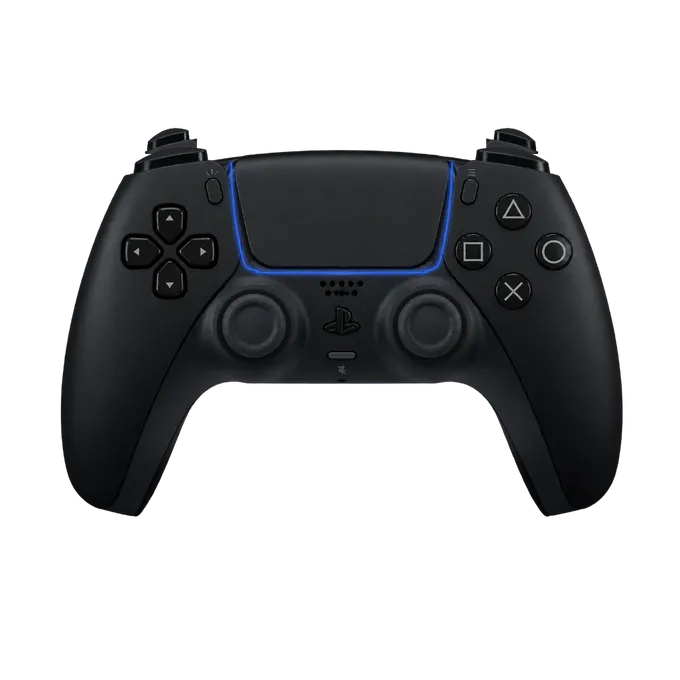
Press any button on your controller
Connect it by USB or Bluetooth first. A browser shows a controller to a page only after a button has been pressed.
How to connect a DualSense to a computer
By cable: a USB-C cable from the controller to the computer is enough. By Bluetooth: hold Create and the PS button together until the light bar blinks quickly, then pick “DualSense Wireless Controller” in the computer’s Bluetooth settings.
Then press any button on this page. A browser shows a controller to a page only after a button press. The panel should name it “DualSense Wireless Controller”; a DualSense Edge is named as such.
What this test covers on a DualSense
The browser reports 18 buttons and four stick axes for a DualSense, and the tester shows all of them:
- Cross, Circle, Square and Triangle, L1 and R1, the D-pad, Create and Options, and the PS button.
- L2 and R2 as analog values from 0.00 to 1.00. Pull slowly: the number should rise evenly to 1.00.
- L3 and R3, the clicks of the two sticks. The dot on the stick plot turns orange while a stick is pressed in.
- The touchpad click, listed as Touchpad. Chrome reports it as an extra button.
- Both sticks: position, distance from centre at rest, and circularity.
- Rumble: both motors for one second, where the browser allows it.
What a browser cannot test on a DualSense
Some of the DualSense’s hardware is not part of what a web page receives: the resistance of the adaptive triggers, the motion sensors, where your finger is on the touchpad, the microphone and the speaker. A page sees the touchpad only as one button. To check those, use the controller settings on a PS5.
Checking a DualSense for stick drift
Let go of both sticks and read “Off centre” under each plot. A few percent is normal. Flick each stick in a few directions and let it spring back: a healthy stick returns to nearly the same number every time. One that rests far from the middle, or lands somewhere new on each release, is drifting. The stick drift test page goes through it step by step.
If the wrong buttons light up
Look at the label beside the controller’s name. “Standard mapping” means the browser put the buttons in the usual order. Over Bluetooth a Sony pad sometimes arrives as “Non-standard mapping”, with the buttons in another order, so pressing Square can light Cross. That is how the browser reports it, not a fault in the pad; over USB it usually arrives in the standard order.
This matters if you show the pad on stream. The PS5 controller overlay corrects the common orders by itself.