Xbox controller tester
Connect your Xbox controller to this computer and press any button. The pad lights up as you press, next to what the browser receives from it.
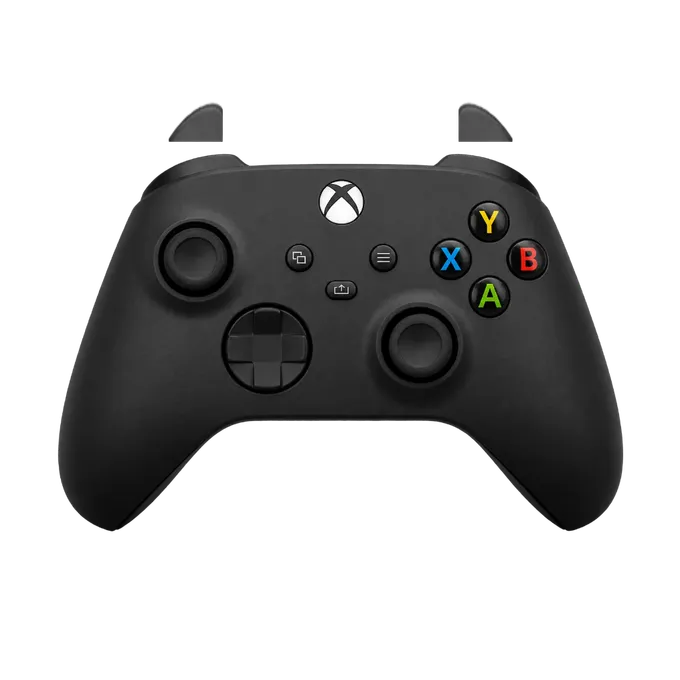
Press any button on your controller
Connect it by USB or Bluetooth first. A browser shows a controller to a page only after a button has been pressed.
How to connect an Xbox controller to a computer
By cable: USB-C for an Xbox Series controller, micro-USB for an Xbox One controller. By Bluetooth: hold the pair button on the top edge until the Xbox button flashes quickly, then pick the controller in the computer’s Bluetooth settings.
Then press any button on this page. On Windows, Chrome names most Xbox pads “Xbox 360 Controller (XInput STANDARD GAMEPAD)” whichever model they are, because that is the driver they use. Over Bluetooth the name differs from one system to the next.
What this test covers on an Xbox controller
Everything the browser receives from the pad:
- A, B, X and Y, LB and RB, the D-pad, View and Menu, and the Xbox button.
- LT and RT as analog values from 0.00 to 1.00. Pull slowly: the number should rise evenly.
- LS and RS, the stick clicks.
- Both sticks: position, distance from centre at rest, and circularity.
- Vibration: the two motors in the grips for one second, where the browser allows it.
Testing LT and RT
The triggers are the inputs that wear in ways a quick press does not show. Pull each one as slowly as you can and watch its number. It should climb without jumping, reach 1.00 at the end of the travel, and fall back to 0.00 when released. A trigger that tops out at 0.90 means a racing game never gets full throttle from it; one that rests at 0.05 means it is always pressed a little.
The motors inside the triggers themselves are not run by this test. The Vibrate button drives the two motors in the grips.
Checking an Xbox controller for stick drift
Release both sticks and read “Off centre” under each plot. A few percent is normal. Flick each stick and let it spring back a few times: a worn stick settles in a different place each time, or rests well away from the middle. The stick drift test page explains the readings.
If you stream with this pad, the Xbox controller overlay puts the same drawing in the corner of your stream.