Controller overlay for OBS
Your PS5, PS4 or Xbox controller in the corner of your OBS scene, lighting up every press. It goes in as one Browser Source with one link, and the stock pads are free.
Get my OBS link
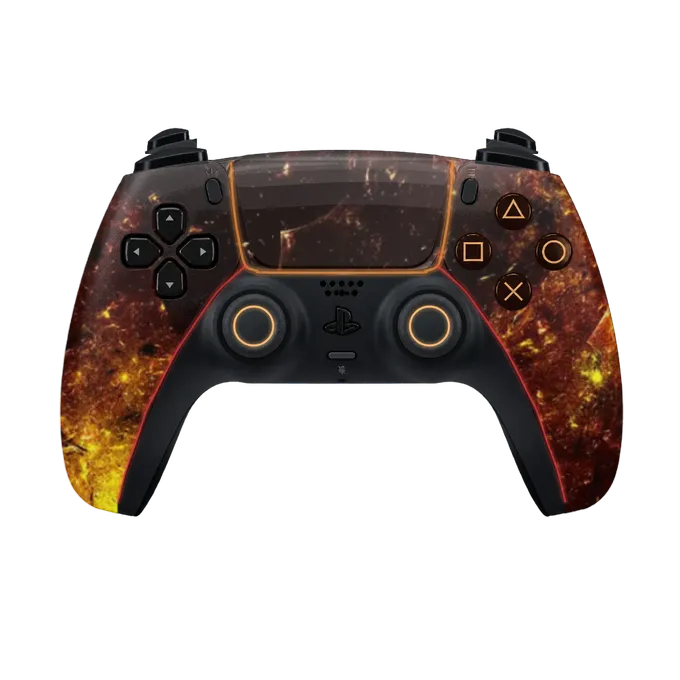
Press any button on your controller
Try a skin
Stock is free. Camo skins are in the vault, $14.99 once.
What a controller overlay does in OBS
A controller overlay is a picture of your gamepad that sits over your game in OBS and moves with your hands. Press a face button and it lights up. Pull a trigger and the trigger lights. Push a stick and the stick on screen travels the same way. Viewers see what you pressed and when, which is what people watching a speedrun, a fighting game or a shooter want to see.
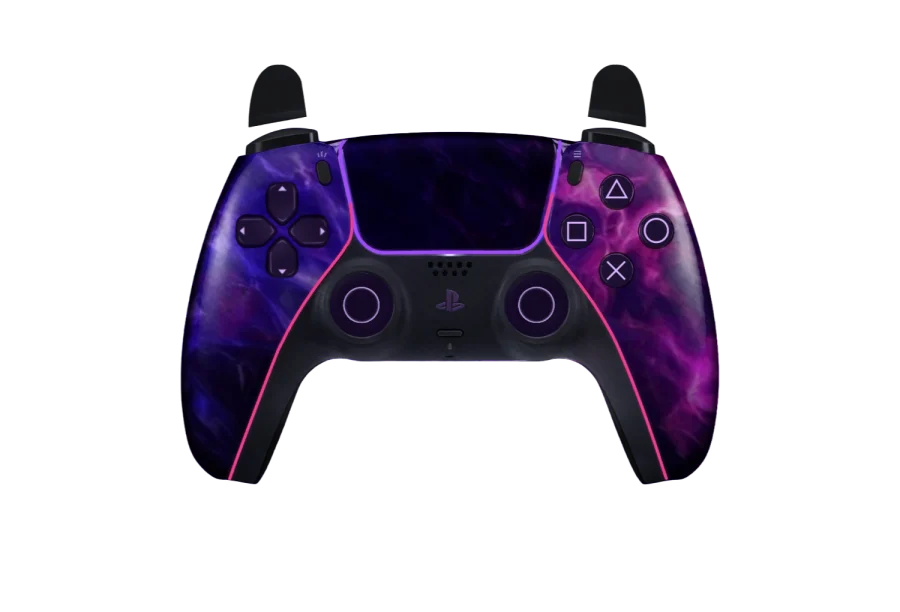
ControllerOverlay draws three pads: the PS5 DualSense, the PS4 DualShock 4 and the Xbox controller. You pick the one you hold, choose a look for it, and get a link. That link is a web page with a transparent background and nothing on it but the controller, so in OBS only the pad appears over your game.
There is nothing to install. OBS already has the source it needs, and the page reads your controller through the browser inside that source.
Add the overlay to OBS as a Browser Source
OBS calls the source you need a Browser source. Its own knowledge base describes it as “quite literally, a web browser that you can add directly to OBS”, and it is available on Windows, macOS and Linux. The steps:
- On this site, sign in, pick your pad and a skin, and copy your overlay link.
- In OBS, click the + button at the bottom of the Sources dock and choose Browser from the list.
- Paste your link into the URL field. Leave the width at 800 and the height at 600.
- Click OK, then press any button on your controller.
Browsers do not tell a page about a controller until one of its buttons has been pressed, so the first press wakes the overlay up and the pad follows from then on. The controller has to be connected to the computer that runs OBS, by USB or Bluetooth, because the page reads it there.
For the same steps with more detail on each OBS dialog, see how to add a controller overlay to OBS.
The Browser Source settings that matter
Most of the Browser source properties can stay as OBS sets them. These are the ones worth knowing, with the defaults OBS documents.
Width and Height. The defaults are 800 and 600, and the overlay is laid out for exactly that size. Leave them, and make the pad smaller in the scene instead (next section).
Custom CSS. OBS fills this box in for you with a rule that makes the page background transparent, removes the margins and hides the scroll bar. Leave it as it is. If you clear it, nothing breaks: the overlay page is transparent on its own.
Shutdown source when not visible. Off by default. Turned on, OBS unloads the page whenever the source is hidden or its scene is not live, and the overlay has to load again when you come back. Leave it off if you switch scenes during a stream.
Refresh browser when scene becomes active. Off by default, and best left off for the same reason: each refresh reloads the page, and the pad waits for a button press again.
Refresh cache of current page. A button, not a setting. It reloads the page at once. Use it if the overlay ever stops following your inputs.
Local file. Off by default. Keep it off: the overlay is a link, not a file on your computer.
Size and position in your scene
Select the source in the Sources dock and OBS draws a red box around it in the preview. Drag the box to move the pad and drag a corner handle to resize it. A corner your game’s HUD leaves empty works best; bottom left and bottom right are the usual choices.

Sources higher in the list are drawn on top of the ones below, so keep the overlay above your game capture. If part of the 800 × 600 area gets in the way, hold Alt (Option on a Mac) and drag an edge to crop it; OBS turns that edge green. To hide the pad for a while without removing it, click the eye icon next to the source.
PS5, PS4 and Xbox controllers
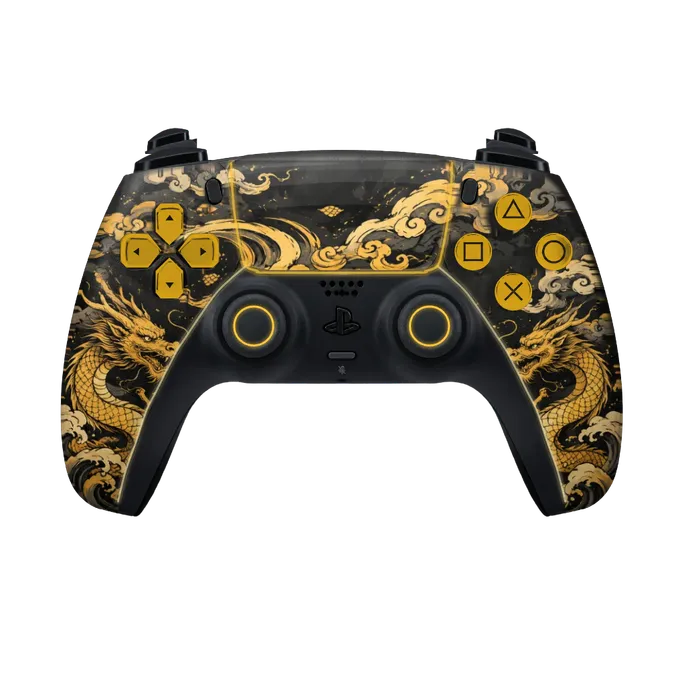
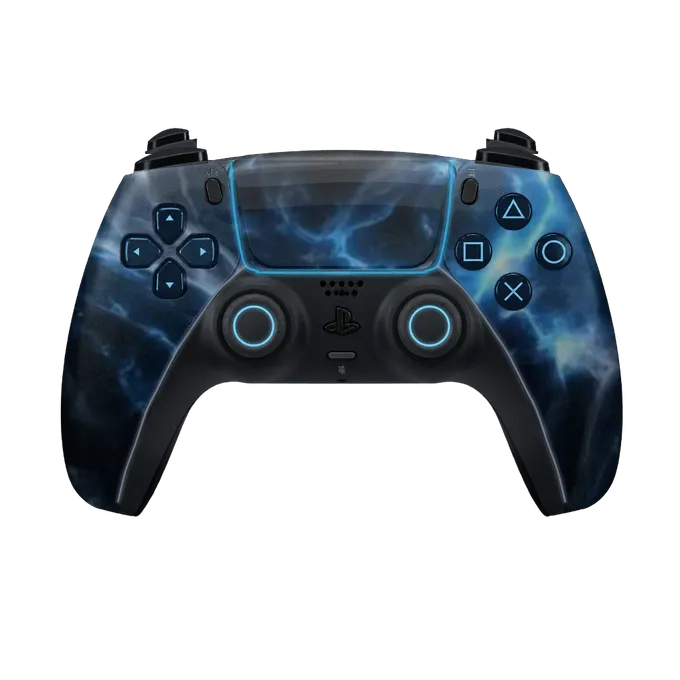
Choose the overlay that matches the pad in your hands. The PS5 controller overlay draws a DualSense with its touchpad, Create and Options buttons. The PS4 controller overlay draws a DualShock 4 with Share and Options. The Xbox controller overlay draws the Xbox controller with A, B, X and Y and its offset sticks.
The OBS side is the same for all three: one Browser source, one link, 800 × 600. Switching pads later is done on this site, and the link in OBS stays as it is.
Sony pads paired over Bluetooth often report their buttons to a browser in an unusual order, so a press of Square can light up Cross. The common cases are corrected automatically, and a calibrator fixes the rest in 14 presses. Over USB the order is the one browsers expect.
Skins, colours and your name
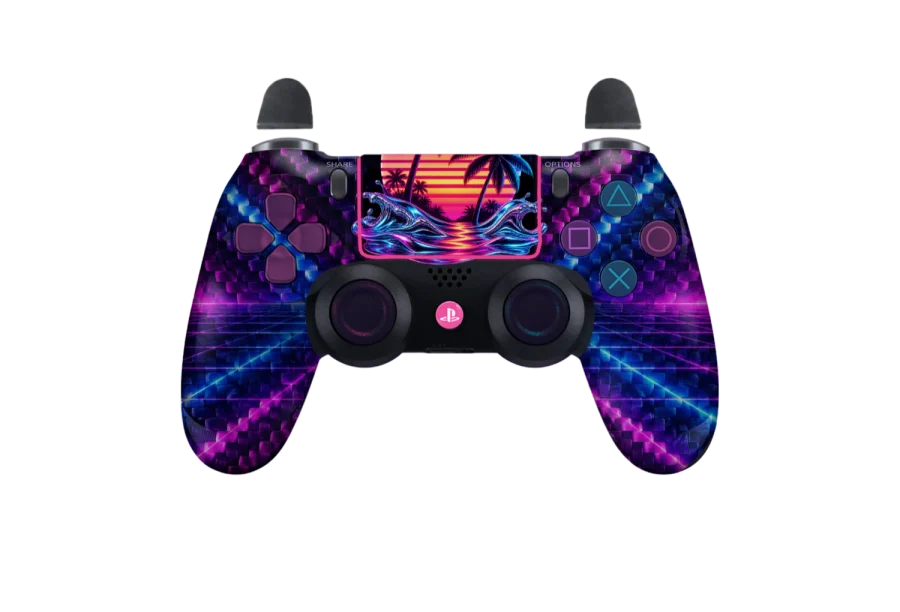
The stock look of each pad is free. Beyond that there are animated finishes, camo, carbon and painted artwork, each fitted to all three controllers; you can see them all on the skins page. If none is what you want, you can describe one in a few words and have it drawn and fitted to your pad. The custom controller overlay page explains how that works.
On top of a skin you can set one colour for the face buttons and D-pad, a colour for the lights that is steady, pulsing or off, and a name of up to 16 characters on the pad. These are picked from controls in the studio. There is no CSS to write.
None of this touches OBS. Your link is permanent: save a change on this site and the page inside your Browser source checks in about every 12 seconds and redraws itself. You do not paste a new link or refresh the source.
If the pad does not respond in OBS
Work through these in order.
Press a button. A page cannot see a controller until one button has been pressed. After adding the source, after a refresh and after OBS restarts, the first press only wakes it.
Check where the controller is connected. It has to be connected to the computer running OBS. A pad that talks only to a console cannot be read, even if the console’s picture reaches OBS through a capture card.
Check the link is open in one place. One link runs one stream at a time. If it is also open in another app or browser tab, the copy that loaded last gets your inputs. Refresh the Browser source to take it back.
OBS 33 and losing focus. The OBS project has an open report, issue 14083, titled “Controller inputs not being read in browser source after OBS loses focus”, filed against version 33.0.0. Gamepad Viewer, another overlay that runs in a Browser source, describes the same thing on its status page and suggests running OBS as administrator on Windows or going back to OBS 32.2.2. The OBS project has marked the report confirmed, and a maintainer found the same fault in the browser that OBS ships, so it affects every overlay in a Browser source, ControllerOverlay included. As of 15 November 2026 a fix is proposed and not yet released; if your pad freezes when you click into your game, use one of those two workarounds.
What is free and what the vault adds
A free account gives you the stock PS5, PS4 and Xbox pads, your permanent OBS link and the Bluetooth button fix. That is a complete controller overlay for OBS at no cost.
The vault is $14.99, paid once, with nothing to renew. It adds every other skin on all three controllers, the button, light and name options, and three skins made from your own description. The details are on the pricing page.
The same link also works outside OBS Studio, in Streamlabs Desktop and TikTok LIVE Studio. If you are coming from Gamepad Viewer, the Gamepad Viewer alternative page compares the two.