Gamepad Viewer skins
Gamepad Viewer comes with twelve skins, and the PS5 controller is not one of them. More are in two shared collections, as CSS files you load through the link, or you write your own. Here is every built-in skin with its picture and Skin ID, where the shared ones are, how custom skins are loaded, and what to use if you would rather not touch CSS.
Start designing
Press any button on your controller
The twelve built-in skins
Gamepad Viewer is a free web tool that shows your controller’s buttons on screen. Its FAQ calls it “a web-based tool used for representing gamepad input visually”. Streamers put it into OBS as a browser source.
A skin, in Gamepad Viewer, is the controller that gets drawn. The skin menu on the main site has twelve entries:
- Xbox One and Xbox One (White)
- Xbox 360
- PlayStation 3 and PlayStation 3 (White)
- PlayStation 4 and PlayStation 4 (White)
- GameCube
- FightPad Pro
- Fight Stick
- NES
- Nintendo 64
That list is as we read it on 14 November 2026. The white versions are recolours of the same three pads, so there are nine different controllers.
Gamepad Viewer skin ID list
You choose a skin when you build your link in the URL Generator. In the link itself the choice is the Skin ID parameter, s=, which Gamepad Viewer’s docs call “the only way to choose what gamepad it is you’d like to display in Compact Mode”. Compact Mode is the view with no background, the one you put into OBS.
The IDs do not follow the order of the menu. Here is each skin with its number:
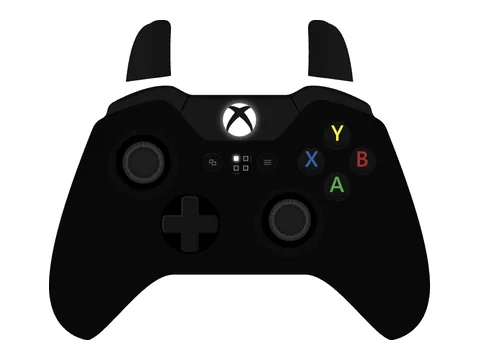
Xbox Ones=1
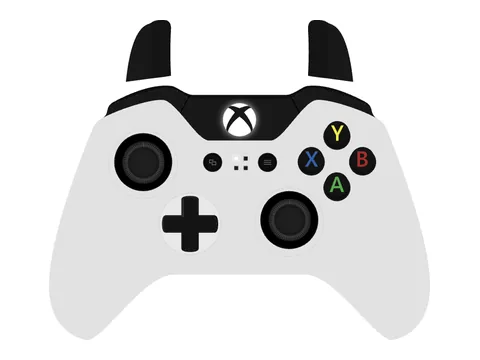
Xbox One (White)s=0
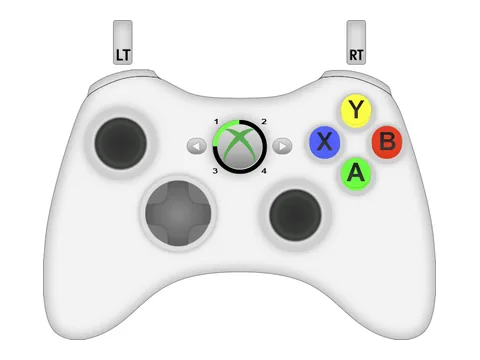
Xbox 360s=4
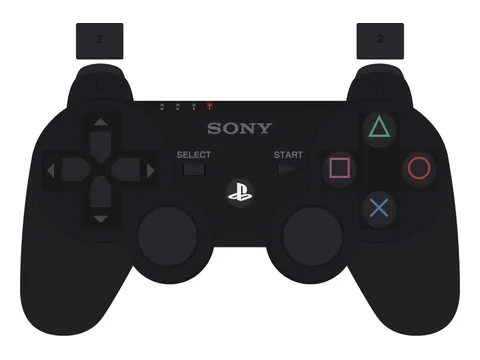
PlayStation 3s=2
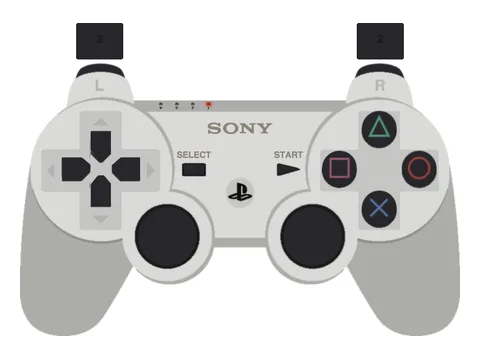
PlayStation 3 (White)s=10
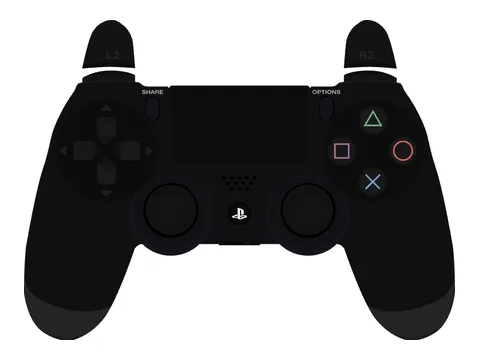
PlayStation 4s=5
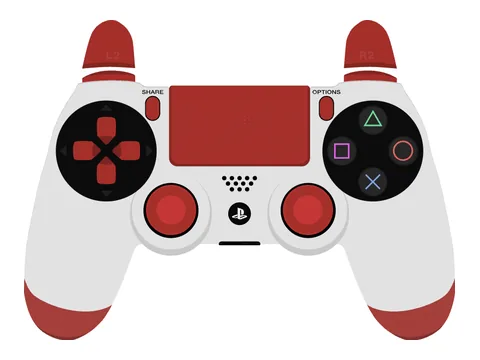
PlayStation 4 (White)s=8
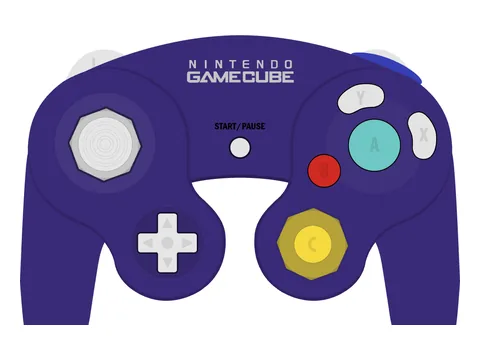
GameCubes=9
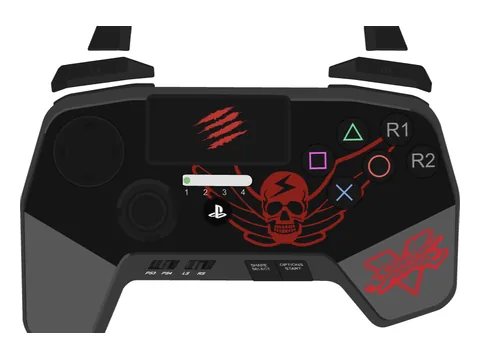
FightPad Pros=6
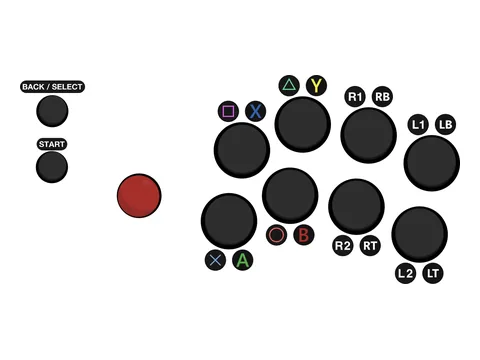
Fight Sticks=7
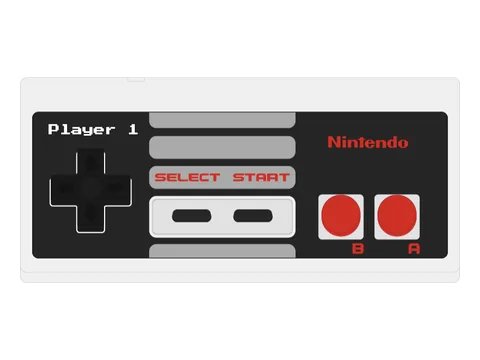
NESs=3
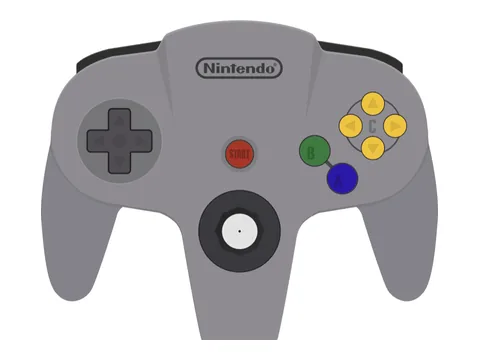
Nintendo 64s=11
So gamepadviewer.com/?p=1&s=5 is player 1 on the PlayStation 4 skin, and changing 5 to 8 makes it the white one. Leave s= out and you get the Xbox One skin, which the URL Generator marks as the default.
Is there a PS5 skin?
Not among the built-in ones. The newest PlayStation controller in the list is the PlayStation 4’s. The beta version has a new URL Generator, and its “GPV Classic Skin” menu offers the same twelve.
So if you play on a DualSense, the built-in choices are a PlayStation 4 pad, whose sticks and buttons are laid out almost the same way, or a custom skin. The rest of this page is about custom skins, because that is where every PS5 look for Gamepad Viewer comes from.
The same goes for any look that is not a plain black or white controller: a colour, a pattern, a theme to match your channel. Gamepad Viewer does not have a colour picker. It has CSS.
How custom skins work
A custom skin is a CSS file on the web. You tell Gamepad Viewer where it is by adding one more parameter to your link, called css=, followed by the file’s address. The docs describe the value as “any URL pointing to a properly formatted CSS file”, and what it does as letting you “completely change the design of the Gamepad Viewer into one of your own or one somebody has shared”.
Three things follow from that.
- The file has to be online. The link points at an address, so a file on your desktop will not do. People keep theirs in a GitHub repository or a gist. The example in Gamepad Viewer’s own docs is a gist.
- Someone has to write it. Gamepad Viewer’s FAQ answers “How do I make a custom skin?” with: “you need to have some basic knowledge of CSS and how it works to make one from scratch, but I have an example file which can help you”.
- It replaces the built-in skin. The docs note that the custom parameter switches off the built-in skin choice. You get the controller the file draws, whichever pad that is.
In the beta’s URL Generator the same thing is a tab called “Custom Skin” with one field, “Custom CSS URL”.
Editing a skin instead of replacing it
There is a second parameter, editcss=, for smaller changes. It also takes the address of a CSS file, but the file only has to hold the changes. From the docs: “you can edit the currently selected skin’s css instead of making a completely new skin”.
This is how people recolour a built-in pad, hide a part of it or change how a pressed button looks, without drawing a controller from nothing. It is still a CSS file that has to be written and hosted, and the link gets longer by its address.
Skins other people have shared
You do not have to write the file yourself if somebody has already written one you like. Two places we checked on 14 November 2026:
- Istador/gamepadviewer-skins on GitHub. It has two PlayStation 5 skins, called Penguin and White, a PlayStation 4 skin, and Game Boy Advance skins in purple and silver. It also has edits for the built-in controllers that hide the pad, or fade it out, when the controller disconnects, in place of the red outline Gamepad Viewer shows. The repository is under the Mozilla Public License 2.0.
- Dracula Theme for Gamepad Viewer. A dark purple theme for a PlayStation 4 pad and an Xbox pad. Each comes as a ready Gamepad Viewer link, so there is nothing to host.
Beyond these, shared skins turn up in Discord servers, in gists and in old forum threads. Before you rely on one, open the link in a browser and press every button: a skin written years ago for one controller may not show every input of yours.
Skins without CSS
ControllerOverlay is a different tool that does the same job, and it takes the opposite approach to skins. There is no CSS anywhere. You pick a skin from a list and it is on your pad.
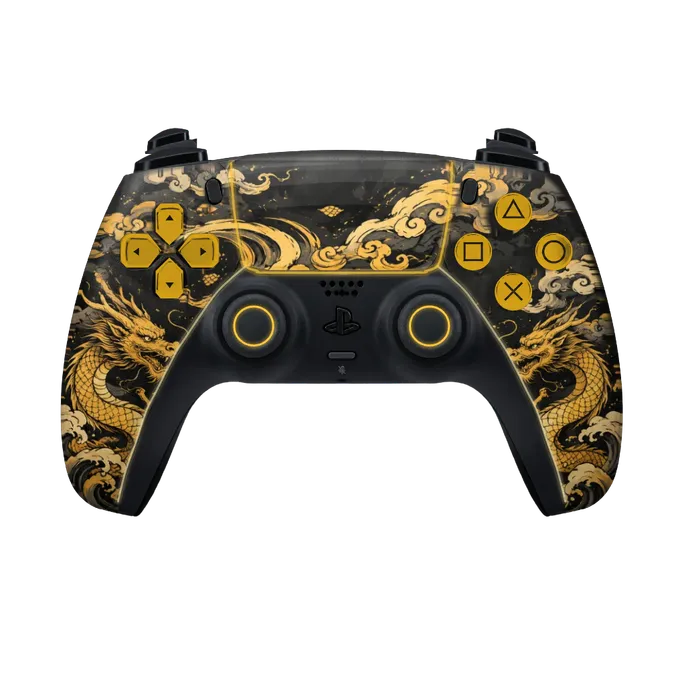
There are 40 skins, and every one is fitted to three controllers: the PS5 DualSense, the PS4 DualShock 4 and the Xbox controller. Each follows the shape of its pad, grips and buttons included. Some are animated, some are camo or carbon, and some are painted artwork. You can look through them on the pad you use: PS5 skins, PS4 skins and Xbox skins.
What you can change without writing anything:
- the colour of the face buttons and the D-pad
- the colour of the lights, and whether they are steady, pulsing or off
- a name of up to 16 characters on the pad
The link is the other difference. A Gamepad Viewer link carries the skin and every setting inside it, so a change means a new link to paste into OBS. A ControllerOverlay link stays the same. You change the skin in the studio, and the page in OBS picks it up in about 12 seconds.
If none of the skins is what you want, you can describe one in a few words and have it drawn and fitted to your pad. That is covered on the custom controller overlay page.
The stock look of each pad is free with an account. The other skins and the colour options are in the vault, which is $14.99 paid once. These skins do not work inside Gamepad Viewer; they are part of ControllerOverlay.
Which one to use
Gamepad Viewer is the right tool if:
- your controller is one ControllerOverlay does not draw. That means an Xbox 360 pad, a PlayStation 3 pad, a GameCube controller, an NES or Nintendo 64 pad, or a fight stick.
- you want to pay nothing at all and a plain black or white pad is fine.
- you enjoy CSS and want to draw a controller that exists nowhere else.
ControllerOverlay is the right tool if:
- you play on a PS5 pad and want it drawn as a PS5 pad.
- you want a look beyond black and white and do not want to write or host a file.
- you change your look often and do not want to paste a new link each time.
You can also try one without giving up the other. Add both as browser sources in the same scene and hide the one you are not using. The OBS steps are the same for either tool and are in how to add a controller overlay to OBS. The same link also works in Streamlabs Desktop and in TikTok LIVE Studio.
For a wider comparison of the two tools, with every statement sourced, see the Gamepad Viewer alternative page. If a stick on your pad is pulling off centre, see how to calibrate an Xbox controller or calibrate a PS5 or PS4 controller.